
Delivery methods
The choice depends, first of all, on the availability of a good SMTP server. If your ISP SMTP server is able to handle many messages in fast sequence, or even sending more messages simultaneously, using an SMTP server is faster and more reliable, since your SMTP server is “closer” to your computer than the single recipient’s e-mail server.
However, some providers, to prevent their users from using the server for spamming purposes, impose restrictions on the number of messages that can be sent within a specific time span and the number of messages that can be sent simultaneously (for instance, an SMTP server could accept no more than a message every 5 seconds and not allow sending more than 2 messages at a time). All messages that exceed these restrictions will be rejected with an error. This does not mean that the server or the software aren’t working properly, but rather, that it will be necessary to set in a different way the sending timing option in the Sending Options.
Using SMTP Server:
It is necessary to specify the name of the SMTP server and the port number (usually it's 25). The SSL checkbox enables SSL communication, which may be needed by some SMTP servers (a typical example is Gmail’s SMTP server). In case a user authentication is required, select 'Authentication required' and specify Username and Password.
These parameters are the ones used in your e-mail client software, therefore all you’ll need to do is “copy” them from a working e-mail account.
To make sure the SMTP server is reachable just click on the Test connection button.
Example configuration for Gmail email address account:
| Account name: | Define a name for this email account (Example: My Gmail account) |
| From name: | Company or personal name |
| From email: | example@gmail.com (Your Gmail email address) |
| Reply-to email: | Any email address where you want to get back reply. |
| Delivery Method: | SMTP Server |
| SMTP Server: | smtp.gmail.com |
| SMTP Port: | 587, 465 |
| Use authentication: | Yes (checked) |
| Use SSL connection on server: | Yes (checked) |
| Username: | example@gmail.com (Your Gmail email address) |
| Password: | Your Gmail account password |
| Limitation: | 100 emails at a time and there's a (constant) maximum of 500 emails per 24 hours. |
Example configuration for Hotmail email address account:
| Account name: | Define a name for this email account (Example: My Hotmail account) |
| From name: | Company or personal name |
| From email: | example@hotmail.com (Your Hotmail/Live email address) |
| Reply-to email: | Any email address where you want to get back reply. |
| Delivery Method: | SMTP Server |
| SMTP Server: | smtp.live.com |
| SMTP Port: | 587 |
| Use authentication: | Yes (checked) |
| Use SSL connection on server: | Yes (checked) |
| Username: | example@hotmail.com (Your Hotmail/Live email address) |
| Password: | Your Hotmail/Live account password |
| Limitation: | no more than 100 recipients per day. |
Example configuration for AOL email address account:
| Account name: | Define a name for this email account (Example: My AOL account) |
| From name: | Company or personal name |
| From email: | example@aol.com (Your AOL email address) |
| Reply-to email: | Any email address where you want to get back reply. |
| Delivery Method: | SMTP Server |
| SMTP Server: | smtp.aol.com |
| SMTP Port: | 587 |
| Use authentication: | Yes (checked) |
| Use SSL connection on server: | Yes (checked) |
| Username: | example@aol.com (Your AOL email address) |
| Password: | Your AOL account password |
| Limitation: | no more than 100 recipients per message or 500 recipients per connection. |
Example configuration for Yahoo address account:
| Account name: | Define a name for this email account (Example: My Yahoo account) |
| From name: | Company or personal name |
| From email: | example@yahoo.com (Your Yahoo email address) |
| Reply-to email: | Any email address where you want to get back reply. |
| Delivery Method: | SMTP Server |
| SMTP Server: | smtp.mail.yahoo.com |
| SMTP Port: | 995 |
| Use authentication: | No (checked) |
| Use SSL connection on server: | Yes (checked) |
| Username: | example@yahoo.com (Your Yahoo email address) |
| Password: | Your Yahoo account password |
| Limitation: | no more than 100 emails or recipients per hour. |
Example configuration for Lycos address account:
| Account name: | Define a name for this email account (Example: My Lycos account) |
| From name: | Company or personal name |
| From email: | example@lycos.com (Your Lycos email address) |
| Reply-to email: | Any email address where you want to get back reply. |
| Delivery Method: | SMTP Server |
| SMTP Server: | smtp.mail.lycos.com or use your local ISP SMTP mail server |
| SMTP Port: | 25 |
| Use authentication: | No (checked) |
| Use SSL connection on server: | No (checked) |
| Username: | example@lycos.com (Your Lycos email address) |
| Password: | Your Lycos account password |
| Limitation: | max 25 recipients per message and max 250 emails per day |
Example configuration for Unified Email SMTP Relay Services:
| Account name: | Define a name for this email account (Example: My Unified Email Account) |
| From name: | Company or personal name |
| From email: | example@yourdomainname.com (Your email address) |
| Reply-to email: | Any email address where you want to get back reply. |
| Delivery Method: | SMTP Server |
| SMTP Server: | Enter the name of the Smart Host provided in your welcome letter |
| SMTP Port: | 25, 2525 |
| Use authentication: | Yes (checked) |
| Use SSL connection on server: | No (unchecked) |
| Username: | Enter the User ID provided in your welcome letter. |
| Password: | Enter the Password provided in your welcome letter. |
Example configuration for GoDaddy Business Class Email account:
| Account name: | Define a name for this email account (Example: My GoDaddy Email Account) |
| From name: | Company or personal name |
| From email: | example@yourdomainname.com (Your email address) |
| Reply-to email: | Any email address where you want to get back reply. |
| Delivery Method: | SMTP Server |
| SMTP Server: | smtpout.europe.secureserver.net |
| SMTP Port: | 25, 80, 3535, 587 (without SSL) or 465 (with SSL) |
| Use authentication: | Yes (checked) |
| Use SSL connection on server: | Yes (checked) |
| Username: | example@gmail.com (Your email address) |
| Password: | Your email account password |
Example configuration for custom email address:
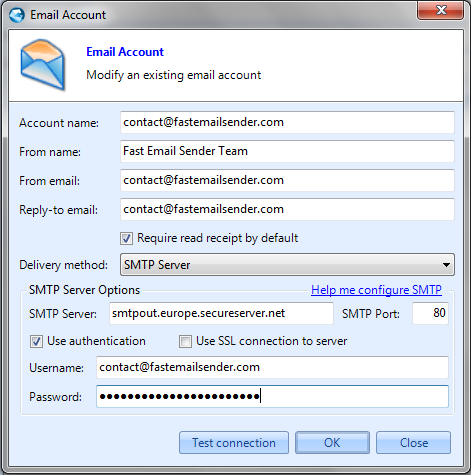
After you complete all fields we reccommend to test configurations by "Test connection" button.
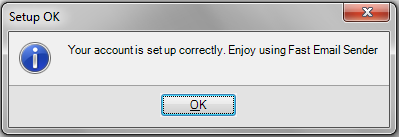
If your information are correct you will recieve an email confirmation and also this notification window:
Using DNS Send:
The software will look for each recipient’s e-mail server and will automatically connect to it, therefore “skipping” the SMTP server that won’t then be needed in the send settings.
Is the currently selected delivery method. Keep in mind that certain e-mail domains (for instance, Hotmail) won’t allow direct sends: the message gets rejected if it was originated from a desktop system as opposed to a public SMTP server.